 ShowNotes
The teleprompter
they can’t see.
ShowNotes is a floating notes window for Mac that sits above any app — your slides, your browser, your demo — and is completely invisible to screen share, recordings, and screenshots. Cue cards, not scrolling text. Built for live conversations, not scripts.
Download for Mac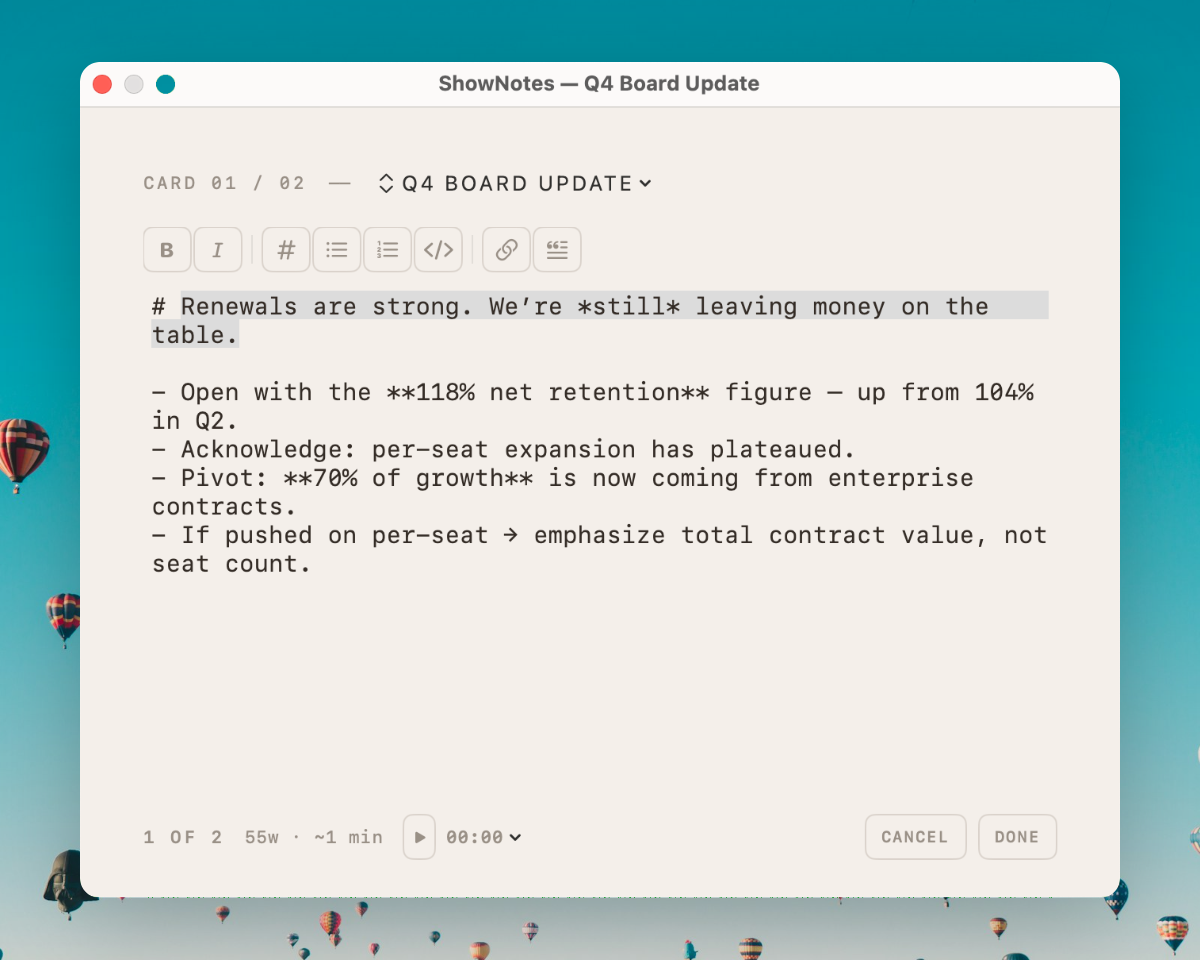
Why traditional teleprompters fall short for most Mac users
The scrolling teleprompter was built for a different era
The teleprompter was invented in the 1950s for television news anchors who needed to read a prepared script while looking directly into the camera. The concept was simple: text scrolls upward on a transparent screen at a fixed pace, and the presenter reads along. For decades, this model served its purpose well — because the use case was narrow. News anchors read, word for word, from a script that someone else wrote. They don’t get interrupted. They don’t take questions. They don’t pivot mid-sentence because a prospect asked about a competitor.
When teleprompter apps arrived on Mac, they faithfully replicated this 1950s model. You paste your script into a window, set a scroll speed, and hit play. The text moves upward at a constant rate. Some apps let you adjust the speed. Some mirror the text for use with a physical teleprompter rig. A few overlay the scrolling text on your screen. But the fundamental interaction model is the same: a linear stream of text, moving at a fixed pace, designed to be read verbatim.
The problem is that most people who search for a “teleprompter for Mac” in 2026 are not news anchors. They are sales engineers running product demos. They are founders pitching investors. They are marketing directors presenting quarterly results. They are conference speakers delivering technical talks. They are trainers running workshops over Zoom. None of them are reading a word-for-word script. All of them are having conversations — structured conversations, but conversations nonetheless — where they need to hit certain points, handle objections, and adapt on the fly.
Why scrolling text breaks down in live settings
When you use a scrolling teleprompter during a live call, several things go wrong immediately. The scroll speed never matches your natural speaking pace, because conversations are not linear. You speed up during familiar material and slow down when making a critical point. You pause for questions. You skip entire sections when the conversation takes an unexpected turn. A teleprompter that scrolls at 150 words per minute does not care about any of this. It keeps scrolling, and within two minutes you are either ahead of it or behind it.
More critically, scrolling teleprompters have no concept of structure. If you are mid-demo and a prospect asks “How does your pricing work?” you cannot jump to your pricing notes. You have to scroll past everything between your current position and wherever your pricing section lives. In a live call, that means either an awkward pause while you scroll, or — more likely — you just wing it from memory and miss two of the three points you wanted to make.
The card-based approach: designed for conversations
ShowNotes takes a fundamentally different approach to the teleprompter concept. Instead of a scrolling script, your notes are organized into discrete cue cards that you navigate with arrow keys. Each card contains the talking points, objection handlers, data points, or transition phrases for one section of your presentation. You move through them at your own pace. You skip ahead when the conversation shifts. You jump backward when someone revisits an earlier topic.
This is the difference between reading and navigating. A scrolling teleprompter asks you to keep pace with it. ShowNotes keeps pace with you.
- Non-linear navigation. Press the right arrow to advance, left to go back. Press a keyboard shortcut to jump to any card in the deck. Your notes follow your conversation, not the other way around.
- Structured content. Each card has a clear purpose — an opening, a demo section, an objection handler, a close. You know exactly where to find each piece of information because you organized it that way.
- Markdown formatting. Bold your key phrases. Use bullet lists for talk tracks. Add inline code for technical specs. Italic for emphasis. Your cards are readable at a glance, not a wall of scrolling plain text.
- Multi-deck organization. One deck for your product demo. Another for your discovery call. A third for your board update. Switch between decks with a keyboard shortcut. A scrolling teleprompter gives you one script at a time.
Invisible by default — not an afterthought
Most teleprompter apps for Mac were designed to overlay text on your screen. They were not designed to be invisible during screen share. Some happen to work with certain screen-share tools, but it is not their core feature. ShowNotes was built from the ground up around one premise: your audience must never see your notes. Every window in the app uses macOS content protection at the operating system level. This is not a CSS trick or a transparency hack. It is a documented macOS API that excludes the window from all screen capture, including Zoom, Teams, Meet, Webex, Loom, and QuickTime.
This distinction matters because teleprompter apps that rely on window opacity or positioning can still appear during screen share depending on how the presenter is sharing. ShowNotes cannot, because the window is excluded at the compositor level before any screen capture tool can access it.
ShowNotes vs. typical teleprompter apps for Mac
A side-by-side comparison of the features that matter for live presentations, demos, and calls.
| Feature | Typical teleprompter | ShowNotes |
|---|---|---|
| Content model | Scrolling script | Navigable cue cards |
| Invisible to screen share | ✕ not by design | ✓ OS-level |
| Jump to any section | ✕ scroll only | ✓ arrow keys |
| Markdown support | ✕ plain text | ✓ full markdown |
| Multi-deck organization | ✕ one script | ✓ ⌘1–⌘9 |
| Always-on-top floating | varies | ✓ NSPanel |
| Non-activating window | ✕ steals focus | ✓ never steals focus |
| Global hotkey toggle | some apps | ✓ ⌘⇧S |
| Presentation timer | some apps | ✓ countdown + stopwatch |
| Word count / speaking time | ✕ | ✓ per-card + total |
| Pricing model | Subscription or freemium | $19 one-time |
| Native Mac app | varies (often Electron) | ✓ Swift + AppKit |
How ShowNotes works as a teleprompter
From install to your first presentation in five minutes. No account, no sign-up, no configuration.
Create a deck for your presentation
Open ShowNotes and create a new deck. Name it for the occasion — “Q3 Board Update,” “Product Demo,” “Investor Pitch.” You can maintain as many decks as you need: one per meeting type, one per client, one per talk. Switch between them instantly with ⌘1 through ⌘9.
Write your cue cards in Markdown
Click anywhere on a card to enter edit mode. Write in Markdown: bold your key phrases, use bullet lists for talk tracks, add headings to structure each card. Each card represents one section of your presentation — an opening, a demo segment, an objection handler, a closing. Keep each card focused on one topic so you can navigate between them quickly during the call.
Position the window where you need it
Drag the ShowNotes window to your preferred position. It floats above every other application as a non-activating panel, which means it stays on top without stealing keyboard focus from your browser, slides, or demo app. Resize it to whatever dimensions work for your screen. ShowNotes remembers your position and size between sessions.
Start your call and share your screen
Join your Zoom, Teams, Meet, or Webex call. Share your screen however you normally do — full screen, a specific window, or a browser tab. ShowNotes is invisible in all of these modes. It uses macOS content protection (sharingType = .none) to exclude itself from every form of screen capture at the operating system level. Your audience sees your slides and your demo. They never see your notes.
Navigate your cards during the presentation
Press right arrow to advance to the next card. Press left arrow to go back. If the conversation jumps ahead, press the arrow keys to skip to the relevant section. If someone asks a question that maps to a card you prepared, navigate there in a keystroke. You are never scrolling, never searching, never losing your place. The card you need is always one or two key presses away.
Toggle visibility with a global hotkey
Press ⌘⇧S from any app to show or hide ShowNotes. This is a global hotkey that works even when ShowNotes is not the frontmost application. If you need to glance at your notes during a live demo, press the hotkey. When you are done, press it again. There is no app switching, no alt-tabbing, no fumbling.
A teleprompter built for professionals, not news anchors
ShowNotes is used by people who present live and need structured notes they can navigate on the fly — not a script to read verbatim.
Sales engineers & solutions consultants
You run five product demos a day. Each one is slightly different because each prospect has different pain points, different objections, and a different technical stack. You need your talk track, objection handlers, pricing guardrails, and competitive positioning visible on every call but invisible to the buyer. ShowNotes gives you a deck per demo type with cards you can jump to when the conversation shifts. Your fifth demo is as sharp as your first.
Founders & executives
Investor pitches, board updates, all-hands presentations, customer escalation calls. The stakes are high, the audience is paying close attention, and reading from a script would undermine your credibility. ShowNotes gives you your key metrics, transition phrases, and contingency talking points in a floating window that nobody else on the call can see. You sound prepared because you are — not because you memorized a deck.
Conference speakers & trainers
You are presenting a 30-minute talk with a live demo component. You know the material, but you want your transition cues, timing markers, and key data points visible while you present. A scrolling teleprompter would force you to match its pace. ShowNotes lets you flip through your outline at your own speed, skip sections if you are running long, and jump back if someone asks a question about a previous slide.
Product marketers & analyst relations
Analyst briefings, competitive bake-offs, partner enablement sessions, launch webinars. You need your positioning language, competitive differentiators, and “if they ask about X” contingencies in view during the call. ShowNotes gives you multiple decks — one for each analyst firm, one for each competitor comparison — with cards you can navigate without breaking eye contact with the camera.
Managers running team meetings
Weekly standups, sprint reviews, one-on-ones. You want to make sure you cover every agenda item, reference the right metrics, and remember who you need to follow up with. ShowNotes works as a structured agenda that floats above your shared screen during the call. You check off talking points as you go, navigating from card to card, and nothing appears on the team’s shared view.
Anyone presenting over screen share
If you share your screen during a video call and want notes visible to you but invisible to your audience, ShowNotes is the only Mac app built specifically for that. It is not a general notes app. It is not a teleprompter designed for camera recording. It is a floating cue-card window with OS-level invisibility, built for the specific moment when you are live on a call and need to be prepared.
Technical details for the curious
ShowNotes is a native Mac app built with Swift and AppKit. Here is how the key features work.
Content protection
Every window uses sharingType = .none, the macOS API that excludes it from screen capture. This is the same mechanism 1Password uses to hide password fields. It works at the window-server level — before any screen-share tool can access the pixels.
Always-on-top panel
Implemented as an NSPanel with .nonActivatingPanel style and floating window level. The window stays above every other app but never steals keyboard focus. You can type in your browser, navigate your slides, or run a terminal command without ShowNotes intercepting input.
Markdown rendering
Uses native Foundation AttributedString(markdown:) for rendering. No external markdown libraries. Supports headings, bold, italic, bullet lists, numbered lists, inline code, and links. Rendered in a clean serif typeface for easy reading during presentations.
Keyboard navigation
Arrow keys to move between cards. ⌘⇧S to toggle visibility from any app. ⌘1–⌘9 to switch decks. ⌘N for new card, ⌘D to delete. Every action has a keyboard shortcut so you never reach for the mouse during a presentation.
Local-only storage
All data stored in a single JSON file at ~/Library/Application Support/ShowNotes/. No cloud sync, no network requests, no analytics. Atomic writes via temp-file-and-rename prevent data loss. Decks export as .md files.
Presentation timer
Built-in countdown and stopwatch timer visible in the card footer. Color-coded warnings: orange at 5 minutes remaining, red at 1 minute. Presets from 5 to 60 minutes. Per-card word count and estimated speaking time based on your configured pace (80–250 wpm).
Frequently asked questions about using ShowNotes as a teleprompter
Is ShowNotes actually a teleprompter app?
ShowNotes serves the same purpose as a teleprompter — keeping your notes visible while you present — but uses a fundamentally different approach. Instead of scrolling text, it gives you navigable cue cards organized into decks. This makes it better suited for live conversations, demos, and interactive presentations where you need to jump between topics rather than read a linear script. If you need a scrolling script for recording video monologues to camera, a traditional teleprompter app is a better fit. If you present live over screen share, ShowNotes is purpose-built for that.
Can Zoom, Teams, or Meet see the ShowNotes window?
No. ShowNotes uses macOS content protection (sharingType = .none) to exclude its windows from all forms of screen capture. This works at the operating system level, before any screen-share tool can access the window’s pixels. It is invisible to Zoom, Google Meet, Microsoft Teams (window share), Webex, Loom, and QuickTime. Zoom versions 6.17+ require one setting to be enabled: “Advanced capture with window filtering.” FaceTime is not compatible because it uses a capture method that bypasses macOS content protection.
How is this different from Keynote or PowerPoint presenter notes?
Keynote and PowerPoint presenter notes are locked inside those applications. They only appear when you are in presentation mode within that specific app, and they sometimes show up in screen share depending on how you are sharing. ShowNotes floats above any application — your browser, your terminal, a live product demo, a Google Sheet — and is invisible to screen share regardless of sharing mode. It also works independently of any slide deck, so you can use it for calls, demos, and meetings that do not involve slides at all.
What macOS version do I need?
macOS 13 Ventura or later. ShowNotes ships as a universal binary that runs natively on Apple Silicon (M1, M2, M3, M4) and Intel Macs. It is signed with a Developer ID certificate and notarized by Apple, so it passes Gatekeeper and MDM checks out of the box.
Can I use Markdown in my cue cards?
Yes. ShowNotes uses native macOS Markdown rendering. You can use headings, bold, italic, bullet lists, numbered lists, inline code, and links. Click on any card to enter edit mode, write or paste your Markdown, and press Escape or click away to save. The rendered card uses a clean serif typeface with proper hierarchy, so you can scan your notes at a glance during a live call.
Does ShowNotes require an internet connection?
No. ShowNotes runs entirely offline. It makes zero network requests — no APIs, no analytics, no telemetry. Your notes are stored locally in a single JSON file on your Mac. The only optional network activity is checking for app updates via Sparkle, which you can disable in Settings. No account, no sign-up, no login required.
How much does ShowNotes cost?
$19, one-time purchase. No subscription. You get a 14-day free trial to verify it works with your setup and workflow. After the trial, a single payment gives you the app and all v1 features forever. Future updates to v1 are included. A Plus subscription for v2 features (iCloud sync, voice-triggered card advance) is planned but optional — your $19 license keeps working regardless.
Is this a cheating tool?
No. ShowNotes is for professional preparation — keeping your talk track, demo notes, and key data points visible during presentations and calls. It is used by sales engineers, executives, conference speakers, and trainers. It does not defeat phone cameras pointed at your screen, HDMI capture devices, or someone reading over your shoulder. We do not recommend or support using it to deceive interviewers, examiners, or anyone you owe a fair encounter to.
See your notes. They won’t.
Download ShowNotes and try it free for 14 days. Native Mac app, no account required, no network calls. Your teleprompter stays on your Mac and off their screen.
Download for Mac