 ShowNotes
Your fifth demo,
sharp as your first.
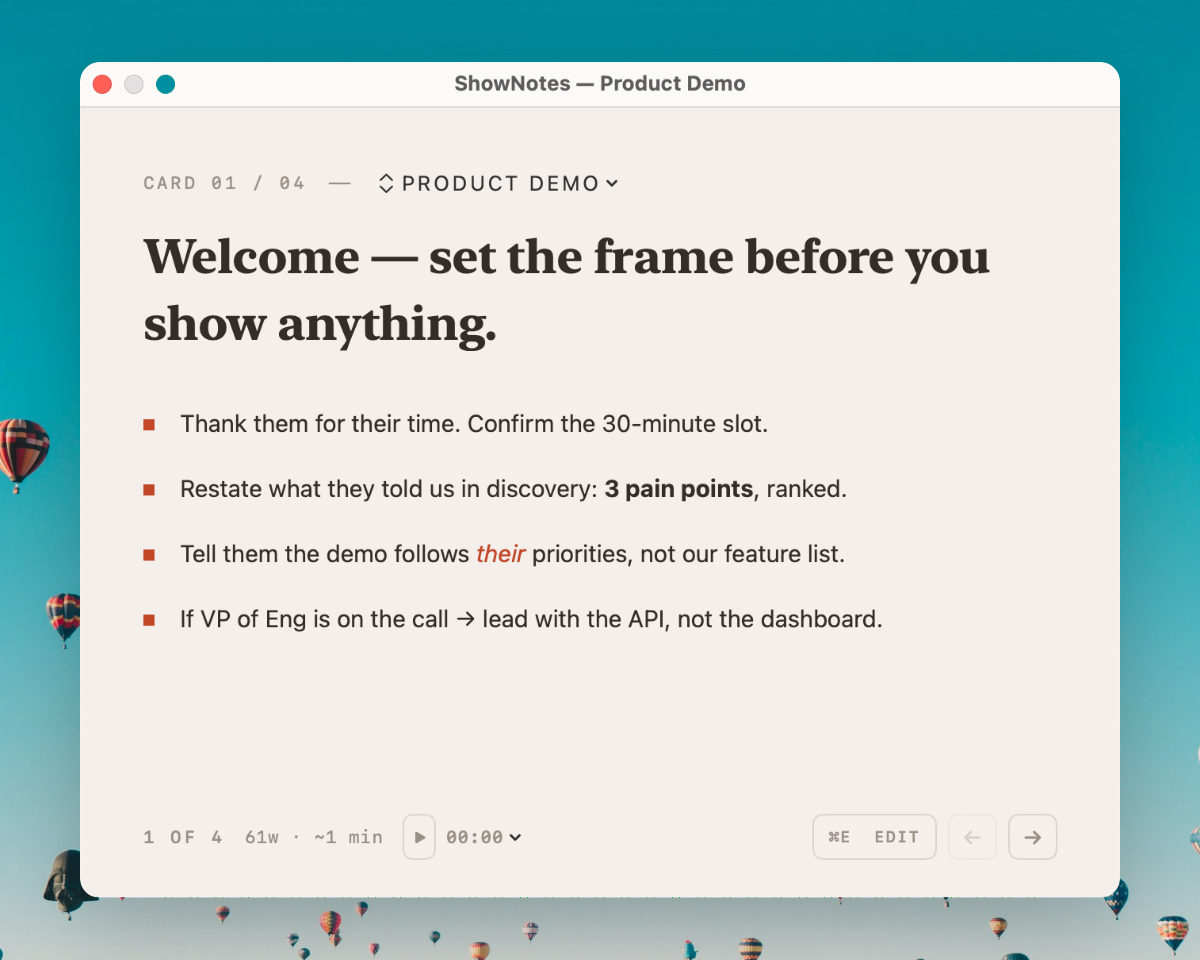
ShowNotes is a Mac app that puts your demo talk track, objection handlers, and pricing guardrails right above your live product demo. Arrow through cue cards as you go. Your audience only sees the product — never your notes.
Demo prep today is broken.
If you run product demos for a living, you know the drill. You spent an hour preparing a talk track, researching the prospect, and mapping their pain points to your product. You have a perfectly sequenced story ready to tell. And then the call starts, you share your screen, and all of that preparation is suddenly trapped in a Google Doc on a tab you can’t switch to.
The workarounds are familiar because everyone has tried them. Sticky notes on your monitor. You wrote three words on a Post-it and stuck it to the bezel. It helped for the opening line. It did nothing for the objection that came in at minute twelve. A second monitor. Better, in theory. But now your eyes keep darting to the right, and everyone on the call can tell you’re reading something. One prospect even asked, “Are you looking at something off-screen?” That was the last time you used that approach.
Presenter notes in Keynote or PowerPoint. These work when you’re presenting slides, but most product demos aren’t slide decks. You’re showing a live application, clicking through dashboards, running workflows, typing real data. Keynote’s presenter view doesn’t help when you’re screen-sharing your browser or your product’s UI.
A notes app in a separate window. Apple Notes, Notion, a plain text file. You keep it open on the side. The problem is obvious: the moment you share your entire screen, everyone sees it. If you share just one window, you can’t switch to other parts of your product without re-sharing. And if you accidentally click the wrong window, your talk track appears in front of the entire buying committee.
Your phone, propped up next to the laptop. This is the most common fallback. You wrote your key points in the Notes app on your phone, and you glance down at it mid-sentence. The camera sees you looking down. Your audience sees the top of your head. You look distracted at best, unprepared at worst — which defeats the purpose of having notes in the first place.
Memorizing everything. Some people try to internalize the entire talk track. This works for your first demo of the day. By the fourth or fifth, the transitions blur together, the energy drops, and the objection that caught you off guard on call three keeps rattling around in your head during call four. Memorization doesn’t scale, and the more pressure you put on yourself to remember, the less natural you sound. You either flub it under pressure or rehearse so hard that you sound scripted.
The core problem is structural: every notes tool you have today is designed to be visible. There has never been a notes app built specifically for the moment when your screen is being shared. That is what ShowNotes is.
Four roles. One tool.
Sales engineers
You run four or five product demos a day on Zoom. Each prospect has different pain points, a different tech stack, and a different set of competitors they’re evaluating. Your demo talk track for a mid-market fintech company looks nothing like your talk track for an enterprise healthcare buyer. You need distinct speaker notes for each demo, organized so you can jump between sections when the conversation takes an unexpected turn.
ShowNotes gives you a separate deck of cue cards for every demo type. Your opening framing, your live walkthrough notes, your objection handlers, and your pricing guardrails are all laid out as cards you flip through with arrow keys. When the prospect asks about SOC 2 compliance in the middle of your workflow builder demo, you jump to the security card and have the answer immediately. Your audience sees a confident, knowledgeable SE. You see your notes.
Multi-deck organization means you can maintain a “Product Demo — Enterprise” deck, a “Technical Deep Dive” deck, and a “Competitive Displacement vs. CompetitorX” deck. Switch between them before each call with a keyboard shortcut. The speaking timer helps you stay within your 30-minute slot without clock-watching.
Account executives
Discovery calls, quarterly business reviews, expansion pitches, and renewal conversations. Every meeting has a different arc, different stakeholders, and different data you need at your fingertips. Your qualifying questions for a new prospect are not the same as your upsell talking points for an existing customer. Keeping all of this in your head is possible for one call. Keeping it sharp across an entire day of calls is not.
With ShowNotes as your sales demo notes tool, you keep your qualifying framework, competitor intel, and next-step prompts visible throughout the call. When a VP mentions a competitor by name, your response is right there — you don’t need to pause, think, or improvise. You sound prepared because you are. The cue cards give you structure without making you sound scripted.
For QBRs, you can build a deck that walks through each customer’s usage metrics, success milestones, and expansion opportunities. Present with your product open on screen, share your dashboard, and have your narrative in ShowNotes floating above it. The customer sees data and professionalism. You see your talk track and the upsell prompt you planned for minute twenty.
Product marketing
Analyst briefings, partner enablement sessions, launch webinars, and competitive deal support. Product marketing lives in the gap between knowing the positioning and delivering it under pressure. You wrote the messaging doc. You know the competitive landscape better than anyone. But when an analyst asks a pointed question about your positioning relative to a new entrant, having your prepared response visible — without fumbling through slides — makes the difference between looking authoritative and looking uncertain.
ShowNotes serves as your product demo cue cards for high-stakes external conversations. Your “if they ask about X” contingencies, your competitive battle card talking points, and your differentiation pillars stay in view while you present. For launch webinars, you can build a deck that follows the webinar flow: intro, product demo, customer proof points, Q&A prep. Arrow through them as you go. The audience sees polish. You see preparation.
Customer success
Onboarding walkthroughs, training sessions, enablement calls, and renewal conversations. Customer success managers are presenting nearly as often as sales engineers, but the tooling conversation rarely includes them. Every onboarding session follows a similar structure, but the details change for each customer: their integrations, their use case, their team size, their specific goals from the kickoff call.
With ShowNotes, you can template your onboarding deck and customize it per customer. Your standard walkthrough flow stays consistent while customer-specific details — their admin setup, their unique workflow configurations, their success criteria — live in the cue cards. You deliver a personalized experience every time without relying on memory. The presentation notes sit right on your Mac screen, invisible to the customer, and you navigate them with keyboard shortcuts while demonstrating the product live.
For renewal conversations, a dedicated deck with usage highlights, ROI data, and expansion suggestions gives you a structured narrative. You are not winging it. You are delivering a prepared, data-driven case for continued partnership — while the customer sees nothing but their own dashboard.
How ShowNotes works for demos
Write your demo talk track as cue cards
Open ShowNotes, create a new deck, and start writing. Each card holds one section of your demo: your opening framing, your live walkthrough notes, your objection handlers, your closing ask. Write in Markdown — headings, bold, italic, bullets, numbered lists, inline code — and ShowNotes renders it in a clean, readable format. Click any card to edit it. Click away to save. The entire editing experience happens in the same window, with no pop-ups and no mode switching.
Position the window and start your demo
ShowNotes opens as a floating window that sits above every other application. Drag it to a corner of your screen, resize it, and adjust the opacity if you want a semi-transparent overlay. When you share your screen on Zoom, Teams, Meet, or Webex, ShowNotes is invisible to your audience. It uses macOS content protection — the same window-server-level API that password managers use to hide sensitive fields. No plugins, no browser extensions, no configuration beyond a single Zoom setting.
Navigate your notes with keyboard shortcuts
Press arrow keys to move between cards. Use ⌘1 through ⌘9 to switch decks. Press ⌘⇧S to toggle ShowNotes from any application — even mid-screen-share. The window never steals focus from your demo app. You keep clicking through your product while glancing at your notes. When a prospect asks an unexpected question, jump to the relevant card instantly instead of scrolling through a linear script.
Land the close while the timer keeps you on track
The built-in speaking timer counts up or down. It turns orange at five minutes remaining and red at one minute, so you never accidentally run over your 30-minute slot. Word count and estimated speaking time per card help you calibrate during prep — if a card takes four minutes to read, you know to trim it or split it. After the call, your deck is saved exactly as you left it, ready for the next demo.
Features for the live moment
Invisible to screen share
Uses macOS sharingType = .none content protection to exclude the window from screen capture. Verified with Zoom, Google Meet, Microsoft Teams, Cisco Webex, Loom, QuickTime, and OBS.
Multi-deck organization
One deck per demo type, per prospect, or per meeting. Switch between decks with ⌘1–⌘9. Create, rename, delete, and export decks as .md files.
Markdown cue cards
Write your demo talk track in Markdown with headings, bold, italic, bullets, numbered lists, inline code, and links. Rendered in a clean serif typeface optimized for glancing.
Keyboard navigation
Arrow keys flip between cards. ⌘⇧S toggles the window from any app. No mouse needed mid-demo. Every action has a keyboard shortcut.
Speaking timer
Built-in countdown or stopwatch. Turns orange at five minutes, red at one. Set presets from 5 to 60 minutes. Word count and estimated speaking time per card.
Always-on-top floating window
ShowNotes floats above every application and never steals focus. Click through to your demo app. Drag and resize the window anywhere. Adjustable opacity from 40–100%.
One-click editing
Click any card to edit. Click away to save. Quick-format toolbar handles bold, italic, headings, bullets, and code spans. No mode switching, no new windows.
Light and dark mode
Follows your system appearance or set it manually. Warm cream in light mode, warm charcoal in dark. Choose what’s easiest to glance at mid-presentation.
Instant persistence
Auto-saves to disk. Your decks, cards, window position, and preferences survive every relaunch. Full undo and redo for all card and deck operations.
Works where you demo
ShowNotes uses macOS content protection at the window-server level. No plugins, no browser extensions, no complicated setup. Your speaker notes stay invisible during every demo call.
Everything you’d ask first
Can I use ShowNotes as speaker notes during a live product demo?
Yes, and that is exactly what it was built for. ShowNotes creates a floating window of cue cards that sits above your demo application — your browser, your product UI, your terminal, whatever you are showing. When you share your screen on Zoom, Teams, Meet, or Webex, your audience sees the demo. They do not see your talk track, your objection handlers, or your pricing notes. The invisibility comes from macOS content protection (sharingType = .none), which excludes the window at the operating system level.
How are sales demo notes organized in ShowNotes?
As markdown cue cards grouped into decks. Each deck is a collection of cards for a specific demo or meeting type. You might have a “Product Demo — Enterprise” deck with cards for your opening frame, live walkthrough, objection handling, and closing ask. A separate “Discovery Call” deck with qualifying questions and competitor intel. A “QBR — Acme Corp” deck with usage metrics and expansion prompts. Switch between decks instantly with keyboard shortcuts. Each card supports full Markdown, so your sales demo notes can include bold text, bullet lists, numbered steps, and inline formatting.
What makes this different from a teleprompter for demos?
Teleprompter apps scroll a single linear script from top to bottom. They are designed for reading verbatim on camera. ShowNotes is a demo talk track app that organizes your notes as navigable cue cards you flip through with arrow keys. When a prospect asks about pricing mid-demo, you jump directly to your pricing card instead of scrolling past forty lines of talk track. When someone raises a competitor by name, you go straight to the objection handler. Cards give you random access to your preparation. A teleprompter gives you a scroll bar.
Which screen share platforms work with ShowNotes?
ShowNotes is invisible on Zoom (with one setting enabled: “Advanced capture with window filtering”), Google Meet, Microsoft Teams (in window-share mode), Cisco Webex, Loom, QuickTime, and OBS. It uses macOS content protection at the window-server level, which means it works with any screen share tool that respects the operating system’s content protection flags. FaceTime is not compatible because it uses a capture method that bypasses these flags.
Does ShowNotes work alongside Keynote, PowerPoint, or Google Slides?
Yes. ShowNotes floats above any application on your screen, including Keynote, PowerPoint, Google Slides in a browser, or your live product. It does not replace your presentation app — it sits on top of it, invisibly. Many users keep ShowNotes open as supplemental presentation notes on their Mac while presenting slides, using the cue cards for talking points, transitions, and Q&A prep that do not belong on the slides themselves.
Can I use different notes for different types of demos?
Yes, that is what multi-deck support is for. Create one deck per demo type, per prospect segment, or per meeting format. You might maintain a standard product demo deck, a technical deep-dive deck, a competitive displacement deck, and a discovery call deck. Switch between them with ⌘1 through ⌘9 before each call. Each deck saves independently, so your product demo cue cards do not mix with your QBR notes.
What macOS version do I need?
macOS 13 Ventura or later. ShowNotes is a universal binary that runs natively on both Apple Silicon and Intel Macs. It is a native Mac app built with Swift and AppKit — not Electron, not a web wrapper. It uses minimal memory and does not slow down your machine during back-to-back demo calls.
Is ShowNotes a one-time purchase or a subscription?
One-time purchase, $19. No subscription, no recurring charges, no upsells. All v1 features are included forever. There is a 14-day free trial with the full feature set — no credit card required to start. A Plus tier with sync and additional features is on the v2 roadmap, but your $19 purchase covers everything in v1 permanently.
Present like you rehearsed.
Your talk track, your objection handlers, your pricing guardrails — all visible to you, invisible to everyone on the call. Download ShowNotes and try it free for 14 days.
Download for Mac