 ShowNotes
Notes on your screen.
Invisible on theirs.
ShowNotes is a Mac app that creates a floating notes window completely invisible to screen share. Your talking points, objection handlers, and key figures stay in view while you present — nobody on the call sees a thing.
Download for Mac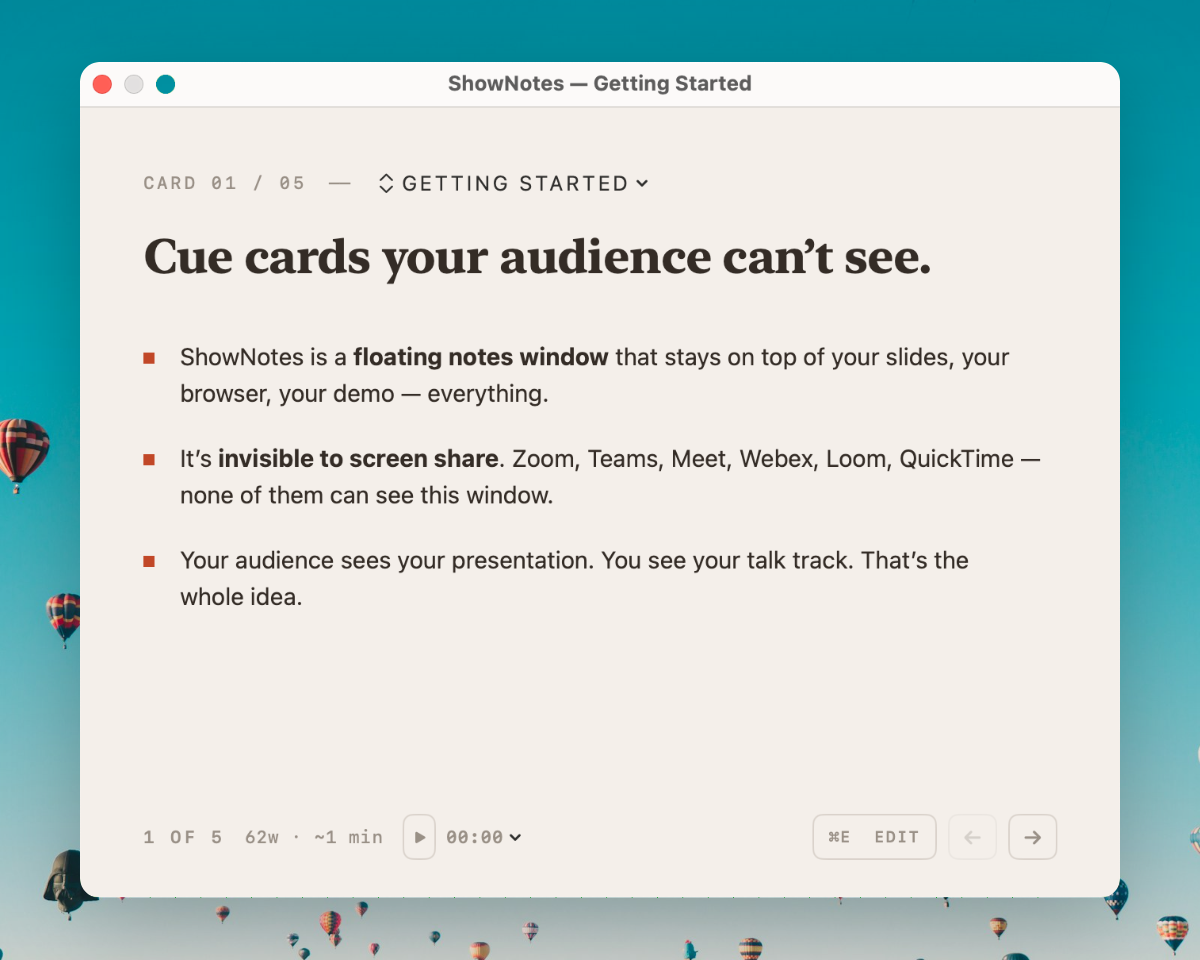
How screen sharing works — and why your notes show up
Every time you share your screen on Zoom, Teams, or Google Meet, the video-conferencing app needs to capture what is on your display and send it to the other participants. On macOS, there are two main ways an app can do this — and understanding them explains why your regular notes window always shows up in screen share.
CGWindowList: the classic approach
The first method, and the one most screen-sharing apps have used for years, is an API called CGWindowList. When Zoom or Teams calls this API, macOS responds with a list of every window currently drawn on your display — your browser, your code editor, your Finder windows, and yes, your notes. The screen-sharing app then composites all of those windows into a single image and sends it over the wire to the other participants on the call. Every window is included by default. There is no way for an ordinary window to opt out. If it is on your screen, it is in the capture.
This is why the common workaround of "just share a single window instead of your whole screen" exists. When you share a specific application window, the screen-sharing tool only captures that one window — so other windows are excluded. But this workaround falls apart the moment you need to switch between apps during a live demo, or when you accidentally share the wrong window, or when you want to show your desktop. And some conferencing tools don’t even offer window-level sharing.
ScreenCaptureKit: the modern method
Starting with macOS 12.3, Apple introduced a new framework called ScreenCaptureKit. This is a more granular, more efficient replacement for CGWindowList-based capture. ScreenCaptureKit gives the capturing application a filter-based system: it can request specific windows, specific apps, or the entire display. It also supports excluding specific windows from capture. Newer versions of Zoom, Teams, and Meet are migrating to ScreenCaptureKit because it uses less CPU and produces better-quality video.
But here is the important part: even with ScreenCaptureKit, a regular notes window is still captured by default. Unless a window explicitly tells macOS "do not include me in any screen capture," it will appear in the stream. The conferencing app does not decide which windows to exclude — it simply asks macOS for what is on the screen, and macOS hands over everything that has not opted out.
Why your notes always show up
Apple Notes, TextEdit, Notion, Obsidian, Google Docs in a browser — none of these applications tell macOS to exclude their windows from capture. They are general-purpose tools, and their windows behave like any other window on the system. When you share your screen, they are visible to everyone on the call.
The common workarounds all have drawbacks. Sharing a single window limits your workflow. A second monitor causes visible eye movement. Sticky notes on your monitor are visible to your webcam. Your phone propped up next to your screen makes you look down. None of these are actual solutions — they are compromises.
The real solution is a window that tells macOS, at the system level, to exclude it from all screen capture. That is exactly what ShowNotes does.
How it works with every major video app
Zoom
ShowNotes is invisible to Zoom screen share. On Zoom 6.16 and earlier, content protection is respected automatically. On newer versions of Zoom that use ScreenCaptureKit, you need to enable one toggle in Zoom's settings: Advanced capture with window filtering. Once that is on, ShowNotes is completely hidden from all participants — whether you share your full screen, a specific app, or a portion of your display.
Microsoft Teams
ShowNotes is hidden from Microsoft Teams when you share a specific window. In full-screen sharing mode, behavior may vary depending on your Teams version and macOS configuration. For the most reliable experience, use window-level sharing in Teams and let ShowNotes float above the window you are sharing. Your notes will not appear in the shared stream.
Google Meet
ShowNotes is invisible to Google Meet in all sharing modes — full screen, specific window, and tab share. No configuration needed. Meet respects the macOS content protection flag out of the box, making ShowNotes completely hidden from every participant on the call. This works whether you are using Meet in Chrome, Edge, or any other browser.
Cisco Webex
ShowNotes is invisible to Webex screen share in all sharing modes. Webex respects macOS content protection natively, so your hidden notes will not appear in any screen share session. No additional configuration or plugins are required. This applies to both the Webex desktop app and browser-based Webex sessions.
Loom
ShowNotes is invisible to Loom recordings. When you record your screen with Loom — whether a full-screen capture or a specific window — the ShowNotes window does not appear in the recording. This is especially useful for creating polished product walkthroughs and demo recordings where you want to reference your notes without them appearing in the final video.
QuickTime & OBS
ShowNotes is invisible to QuickTime screen recordings and OBS Studio captures. Any macOS application or streaming tool that uses CGWindowList or ScreenCaptureKit for capture will not see the ShowNotes window. This includes screenshot tools, screen-recording utilities, and live-streaming software.
What ShowNotes is — and what it isn’t
A preparation tool
ShowNotes exists so you can be better prepared during live presentations, demos, and meetings. Your talk track, objection handlers, pricing guardrails, and key figures are right there when you need them — without the cognitive load of memorizing everything or the risk of forgetting something critical.
Built for professionals
Sales engineers running back-to-back demos. Account executives on discovery calls. Product marketers giving analyst briefings. Conference speakers delivering talks. Trainers walking through onboarding. Anyone who presents live and wants to do it well, every single time.
Not a general notes app
ShowNotes is not trying to replace Apple Notes, Notion, or Obsidian. It does one thing — invisible floating cue cards for live presentations. It does not have folders, tags, databases, or syncing. It has decks of cards that you flip through while you present.
Not a security tool
Content protection only applies to software-based screen capture. A phone camera, HDMI capture card, or someone looking over your shoulder will still see the ShowNotes window. ShowNotes does not guarantee total concealment — it protects your notes from screen share software specifically.
Built for the live moment
Invisible to screen share
Uses macOS sharingType = .none to exclude the window from all screen capture. The same mechanism 1Password uses. Works with Zoom, Teams, Meet, Webex, Loom, QuickTime, and OBS.
Floating window
ShowNotes floats above all other applications. Your notes stay visible no matter what app is in the foreground — your browser, your IDE, your slide deck, your terminal.
Global hotkey
⌘⇧S toggles ShowNotes from any app, even mid-screen-share. No app-switching, no fumbling. Show and hide instantly.
Markdown cue cards
Write in Markdown — headings, bold, italic, bullets, numbered lists, inline code, links. Rendered beautifully. Click to edit, click out to save.
Multi-deck organisation
One deck per talk, demo, or meeting. Switch instantly with ⌘1–⌘9. Create, rename, delete, and export decks as .md files.
Arrow-key navigation
Press arrow keys to flip through cards like a presentation remote. Jump to any card instantly. Your talk track stays at your fingertips.
Speaking timer
Built-in countdown or stopwatch with colour warnings. Turns orange at 5 minutes, red at 1 minute. Set presets from 5 to 60 minutes.
Light & dark mode
Follows your system appearance or set it manually. Adjustable opacity from 40–100% so your notes blend with your workflow.
Native Mac app
Built with Swift and AppKit. No Electron, no web wrappers. Launches instantly, uses minimal resources, and feels like a built-in macOS utility.
Frequently asked questions
How do I make notes invisible to screen share?
Download ShowNotes, write your notes as Markdown cue cards, and start your meeting. ShowNotes uses the macOS sharingType = .none API to exclude its window from screen capture at the operating-system level. Your notes are visible to you but completely invisible to anyone you are sharing your screen with on Zoom, Teams, Meet, Webex, or Loom. There is no configuration needed — the window is hidden from screen share by default, every time.
Is this the same technology 1Password uses to hide passwords?
Yes. 1Password uses the same macOS content protection mechanism — sharingType = .none — to prevent password fields from appearing in screen share. ShowNotes applies this to an entire notes window. It is a documented, Apple-supported API designed specifically to protect sensitive on-screen content from software-based capture.
Will my hidden notes show up if I share my entire screen?
No. Whether you share your full screen, a specific application window, or a portion of your display, the ShowNotes window is excluded from the capture. Your audience sees everything else on your screen — your slides, your browser, your demo — but not the ShowNotes window. There is no black rectangle or visual artifact in its place.
Does this work on Windows or Linux?
ShowNotes is Mac-only at launch, requiring macOS 13 Ventura or later. It runs natively on both Apple Silicon (M1, M2, M3, M4) and Intel Macs. Windows has a similar capability called SetWindowDisplayAffinity, and a Windows version may come in the future, but there is no firm timeline. Linux does not currently have an equivalent system-level content protection API.
Can a phone camera or HDMI capture card see my notes?
Yes. Content protection only applies to software-based screen capture on macOS. A phone camera pointed at your monitor, an HDMI capture card, or someone physically looking at your display will still see the ShowNotes window. The protection is specifically against screen-sharing and screen-recording software.
How is this different from a teleprompter app?
Teleprompter apps scroll a linear script from top to bottom — useful for reading verbatim on camera, but impractical during interactive meetings. ShowNotes organizes your notes as cards you flip through with arrow keys and decks you switch with keyboard shortcuts. When someone asks about pricing mid-demo, you jump straight to that card. When you switch to a different meeting type, you switch to a different deck. ShowNotes is built for conversations, not scripts.
What if Zoom updates and breaks compatibility?
The content protection mechanism is built into macOS at the window-server level — it is not a Zoom-specific workaround. As long as the screen-sharing tool asks macOS for screen content through the standard APIs (CGWindowList or ScreenCaptureKit), content-protected windows will be excluded. Zoom's transition to ScreenCaptureKit required one setting to be toggled (Advanced capture with window filtering), and that is documented in our setup guide. If a future update changes behavior, we will update ShowNotes accordingly.
Is ShowNotes free?
ShowNotes costs $19, one-time. There is no subscription. You get a 14-day free trial to verify it works with your specific setup before paying. The $19 covers the current version and all updates within v1. Your license works on up to two Macs.
Ready to present with notes nobody else can see?
Download ShowNotes and try it free for 14 days. Works with Zoom, Teams, Meet, Webex, and Loom.
Download for Mac