 ShowNotes
Demo prep that stays
between you and your screen.
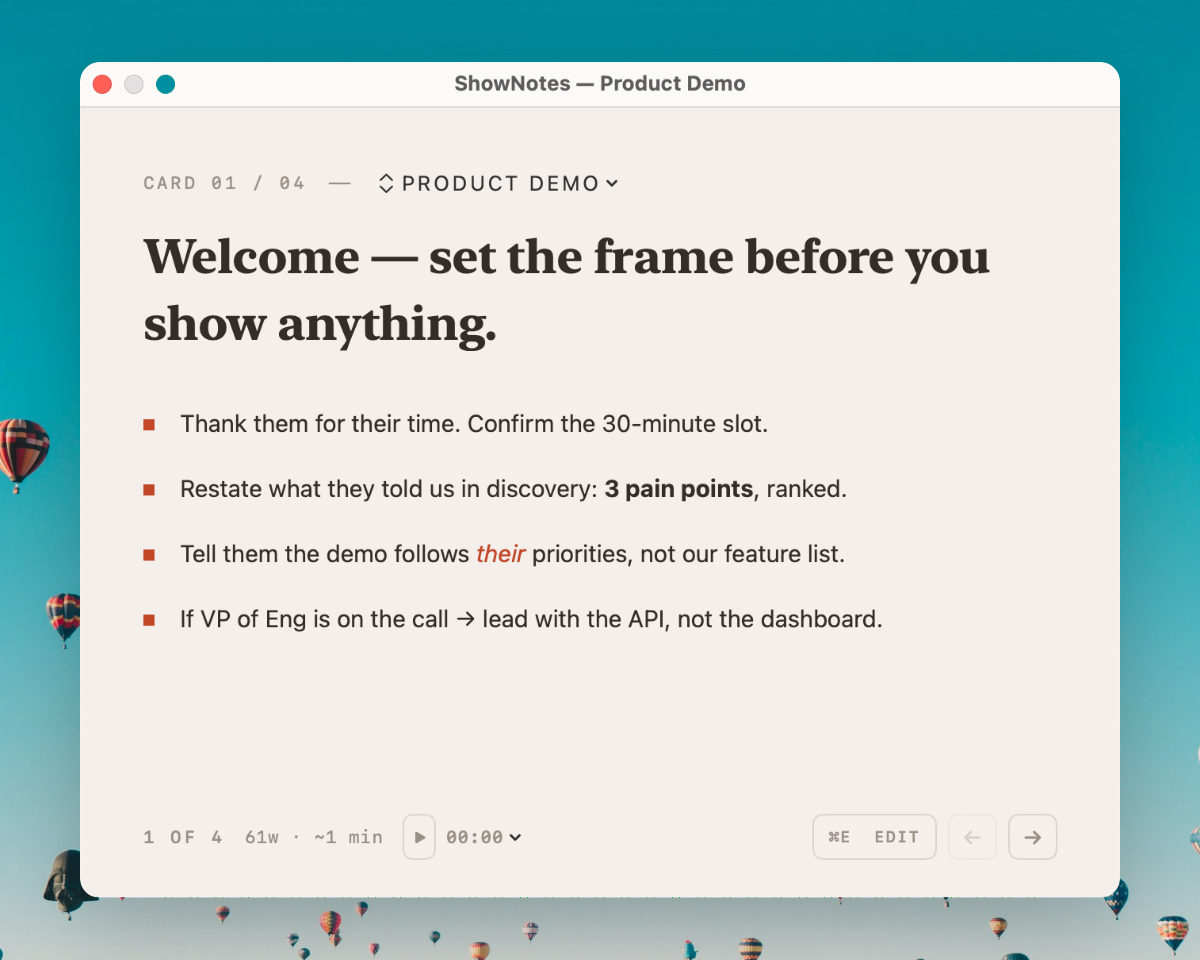
Sales engineers run back-to-back demos all day. ShowNotes gives you floating cue cards with your talk track, objection handlers, and technical reference notes — visible only to you, invisible to every prospect on the call. Arrow through cards as you demo. Nobody sees a thing.
Your demo prep deserves better.
If you are a sales engineer, solutions engineer, or pre-sales consultant, you know the rhythm. You just finished a disco call where you mapped the prospect’s pain points, identified their technical requirements, and noted every competitor they mentioned. You have twenty minutes before the next demo. You open your prep doc, scan through the objection handlers your team built for this competitor, and rehearse the three-sentence bridge from the product overview into the technical deep-dive. You are ready.
Then the call starts, you share your screen, and every bit of that preparation disappears. Your prep doc is on a tab you cannot open. Your objection handlers are in Notion, behind a browser window you cannot switch to without the entire buying committee seeing it. The competitive battle card your product marketing team spent weeks building is useless because you cannot reference it mid-demo without revealing that you are reading from a script.
Keynote presenter notes do not solve this. Most SE demos are not slide decks. You are in your product’s UI, clicking through dashboards, building workflows, running queries, showing integrations. Keynote’s presenter view only works when you are presenting Keynote slides. The moment you switch to a live product demo, you lose your notes entirely. PowerPoint has the same limitation. Google Slides has the same limitation. Every presentation tool assumes you are presenting slides, but SEs spend most of their demo time in a live application.
A second monitor helps, but not enough. You drag your prep doc to the external display and glance over at it. The problem is that your webcam catches every eye movement. Prospects notice when you keep looking to the right. Senior buyers have seen enough demos to know what that means. One CTO told an SE on our team, “You keep looking at something — are you reading from a script?” That killed the deal energy instantly. The second monitor trick trades one problem for another: you get your notes back, but you lose the appearance of confidence.
Your phone propped up next to the laptop. This is the most common fallback among SEs who run high-volume demos. You wrote your key objection handlers in Apple Notes, propped your phone against the laptop stand, and glance down during transitions. The camera catches you looking down. Your prospect sees the top of your head. It works in a pinch, but it does not scale to four or five demos a day without the fatigue showing. By the afternoon calls, the glances get longer, the pauses get more noticeable, and the polish drops.
Memorizing the entire talk track. Some SEs try to internalize everything. This works for the standard product demo you have given two hundred times. It falls apart when you are running a custom demo for a prospect with unusual requirements, when the competitive landscape shifts and your battle cards change, or when you get staffed on a deal outside your core product area. You cannot memorize talk tracks for every demo type, every competitor, and every vertical. The more you try, the more scripted you sound — and the less natural your demo feels.
The fundamental problem is that every notes tool available today was designed to be seen. None of them were built for the moment when your screen is being shared and your audience is watching every pixel. That is exactly what ShowNotes was built for.
Four moments. One tool.
Discovery call talk tracks
The disco call sets the trajectory of the entire deal. You need to ask the right qualifying questions, listen for the pain points that map to your product’s strengths, and position your solution against whatever the prospect is currently using. Most SEs keep a discovery framework — MEDDPICC, SPICED, or something homegrown — but referencing it mid-call means switching tabs or glancing at your phone. Neither looks professional when the VP of Engineering is watching your face on camera.
With ShowNotes, you create a discovery call deck with cards for each phase of the conversation: opening and context-setting, qualifying questions by persona, pain-point probes mapped to your product’s value pillars, competitor-specific follow-ups, and next-step prompts. Arrow through them as the conversation progresses. When the prospect mentions a competitor, jump to the card with your positioning against that vendor. When they describe a workflow that maps perfectly to your differentiator, glance at the card with the right framing. Your champion hears a polished, consultative SE. You see your playbook.
Because ShowNotes supports Markdown, you can format your disco cards with bold text for must-ask questions, bullet lists for secondary probes, and inline code for technical terms or product names you do not want to fumble. The cards stay visible above your video call — above Zoom, above Teams, above Meet — and your prospect never knows they are there.
Product demo cue cards
The live product demo is where deals are won or lost. You have thirty minutes to show the prospect that your product solves their problem better than the alternative. That means navigating your product’s UI, telling a coherent story, handling objections on the fly, and landing the technical win — all while sharing your screen with five to ten people who are evaluating every click you make.
ShowNotes lets you build a demo deck with cards for each section of your walkthrough: opening framing (the “based on what you told us” context-setter), feature demonstrations with step-by-step click paths, objection handlers for the three or four pushbacks you know are coming, competitive differentiation talking points, and a closing card with your ask and next steps. Each card is a self-contained cue — not a script, but the key points you need to hit. Arrow through them as you move through the demo. When the CTO asks about your API rate limits mid-walkthrough, jump to your technical specs card and have the answer immediately.
For SEs who run different demo variants — enterprise vs. mid-market, technical deep-dive vs. executive overview, competitive displacement vs. greenfield — multi-deck support means you maintain separate card sets for each. Switch decks with ⌘1 through ⌘9 before each call. Your “Demo — Enterprise Healthcare” deck stays separate from your “Demo — Fintech Mid-Market” deck. No scrolling through a single massive doc trying to find the right section.
POC and technical deep-dive reference
The proof of concept is where the deal gets technical. The prospect’s engineering team is on the call, and they want to see your product handle their specific data, their specific integrations, their specific edge cases. You are no longer telling a story — you are proving a claim. The margin for error is thin. Fumbling an API parameter, forgetting a configuration step, or blanking on a query syntax can stall the technical evaluation and give the champion’s internal skeptics ammunition to push back.
ShowNotes is the ideal pre-sales notes app for these moments. Build a POC deck with cards for each technical scenario you plan to demonstrate: environment setup and prerequisites, API endpoint reference with example payloads, integration configuration steps, query syntax and expected outputs, and troubleshooting notes for common edge cases. Because ShowNotes supports inline code and code blocks in Markdown, your reference material stays formatted and readable — not buried in a wall of plain text.
During the live session, your cue cards float above your terminal, your IDE, or your product’s admin console. The prospect’s engineering team sees a smooth, confident walkthrough. You see the exact curl command, the exact configuration key, and the exact expected response you prepped the night before. When someone asks you to try an edge case you did not plan for, your troubleshooting card gives you the starting point instead of forcing you to improvise from memory.
QBR and executive presentation prep
Quarterly business reviews and executive presentations are high-stakes, low-frequency meetings where preparation matters more than anywhere else in the deal cycle. You are presenting to the economic buyer, the champion, and sometimes the champion’s leadership. The narrative needs to be tight: usage metrics, ROI evidence, success milestones, and the expansion pitch you have been building toward for three months. Forgetting a data point or losing the thread of your narrative in front of a CFO is not recoverable.
With ShowNotes as your SE demo notes tool for QBRs, you build a deck that mirrors the arc of the meeting: relationship recap and context, usage and adoption metrics, success stories and ROI evidence, product roadmap highlights relevant to this customer, and expansion conversation and next steps. Each card gives you the talking points and the data for that section. You present with your product dashboards on screen, sharing the customer’s actual usage data, while your narrative and the upsell prompt you planned for minute twenty sit invisibly above.
For executive briefings where you are presenting alongside your AE, ShowNotes keeps the technical SE talking points separate from the commercial narrative. You know exactly when to speak, what to cover, and which proof points to cite. The executive sees a coordinated, polished team. You see your cue cards.
How ShowNotes works for SEs
Create a deck for each demo type
Open ShowNotes and create decks for your recurring demo scenarios: standard product demo, technical deep-dive, competitive displacement, discovery call, POC walkthrough, QBR. Each deck is a self-contained set of cue cards you can switch between with ⌘1 through ⌘9. Create as many as you need. Rename them, reorder them, export them as .md files to share with teammates who are shadowing your demos.
Write your cue cards in Markdown
Each card holds one section of your demo prep: your opening frame, a feature walkthrough, an objection handler, a competitive positioning statement, your closing ask. Write in Markdown — headings, bold, italic, bullets, numbered lists, inline code, and links. Click any card to edit, click away to save. No pop-ups, no mode switching. Cards are designed for glancing, not reading verbatim. Write the key points, not a script. Your preparation should make you sound natural, not rehearsed.
Position the window over your demo
ShowNotes opens as a floating window that sits above every application on your screen. Drag it to a corner, resize it, adjust the opacity if you want a semi-transparent overlay. When you share your screen on Zoom, Teams, Meet, or Webex, ShowNotes is invisible to your prospect. It uses macOS content protection at the window-server level — the same API that password managers use to hide sensitive fields. No browser extensions, no plugins, no configuration beyond enabling one Zoom setting.
Navigate your cards with keyboard shortcuts
Arrow keys flip between cards. ⌘⇧S toggles ShowNotes from any app — even mid-screen-share. The window never steals focus from your demo, so you keep clicking through your product while glancing at your notes. When the prospect asks about a competitor, jump to your battle card. When they raise a technical objection, go straight to the spec card. The built-in timer turns orange at five minutes and red at one, so you land your closing ask before the calendar invite ends.
Built for the live demo
Invisible to screen share
Uses macOS sharingType = .none content protection to exclude the window from screen capture. Your prospects never see your notes. Verified with Zoom, Google Meet, Microsoft Teams, Cisco Webex, Loom, QuickTime, and OBS.
Markdown cue cards
Write your demo prep in Markdown with headings, bold, italic, bullets, numbered lists, inline code, and links. Rendered in a clean serif typeface optimized for glancing at mid-demo. Click to edit, click away to save.
Multi-deck for demo types
One deck per demo type, per prospect segment, or per deal stage. Standard demo, technical deep-dive, competitive displacement, disco call, QBR. Switch between decks with ⌘1–⌘9 before each call.
Keyboard navigation
Arrow keys flip between cards mid-demo. No mouse required. Jump to any card instantly when a prospect asks an unexpected question. Every action — next card, previous card, switch deck, toggle window — has a keyboard shortcut.
Floating always-on-top
ShowNotes floats above every application and never drops behind your demo. Drag it to any corner, resize it, adjust opacity from 40–100%. It stays exactly where you put it through the entire call.
Non-activating panel
The window never steals keyboard or mouse focus from your demo app. Click through your product, type in form fields, run workflows — ShowNotes stays visible but never intercepts your clicks or keystrokes.
Global hotkey toggle
Press ⌘⇧S to show or hide ShowNotes from any application, even during a live screen share. Toggle your notes on when you need them, off when you do not. The shortcut works system-wide.
Presentation timer
Built-in countdown or stopwatch. Turns orange at five minutes, red at one. Set presets from 5 to 60 minutes. Word count and estimated speaking time per card help you calibrate your pacing during demo prep.
Works with every platform
Invisible on Zoom, Google Meet, Microsoft Teams, Cisco Webex, Loom, QuickTime, and OBS. Uses macOS content protection at the OS level, so it works with any tool that respects the system’s capture exclusion flags.
Works where you demo
ShowNotes uses macOS content protection at the window-server level. No plugins, no browser extensions, no complicated setup. Your sales engineer notes stay invisible during every demo call.
Everything SEs ask first
Can my prospect see my notes during a Zoom demo?
No. ShowNotes uses macOS content protection (sharingType = .none) to exclude its window from screen capture at the operating system level. When you share your screen on Zoom, your prospect sees your product demo — your browser, your dashboard, your CLI — and nothing else. Your talk track, objection handlers, competitive battle card notes, and pricing guardrails stay completely hidden. This requires Zoom’s “Advanced capture with window filtering” setting, which is enabled by default on recent versions. The content protection happens at the macOS window server, not at the application layer, so there is no plugin to install and nothing for the prospect to detect.
How do I organize notes for different demo types?
Multi-deck support. Create one deck per demo type, per prospect segment, or per deal stage. A typical SE might maintain a “Standard Product Demo” deck, a “Technical Deep-Dive” deck, a “Competitive Displacement vs. CompetitorX” deck, a “Discovery Call” deck, and a “QBR Template” deck. Each deck contains its own set of Markdown cue cards. Switch between decks with ⌘1 through ⌘9 before each call. Your enterprise healthcare demo does not mix with your fintech mid-market demo. Each deck saves independently and persists across app relaunches.
Does it work during screen recordings too?
Yes. ShowNotes is invisible to any screen recording tool that respects macOS content protection flags. This includes Loom, QuickTime, OBS, and most third-party screen recorders. If you record product demo videos for prospects who could not attend the live call, or if you create Loom walkthroughs as follow-ups after a disco call, your notes will not appear in the recording. This also means you can safely leave ShowNotes visible during recorded calls without worrying about your prep material showing up in the recording your AE sends to the champion. The only exceptions are tools that use lower-level capture methods that bypass macOS content protection, such as FaceTime.
Can I switch between note decks mid-call?
Yes, instantly. Press ⌘1 through ⌘9 to switch decks without interrupting your demo. This is particularly useful when a discovery call pivots into a live product demo — switch from your disco deck to your demo deck with a single keystroke. Or when a prospect raises a competitor you were not expecting — jump to your competitive deck for that vendor. The switch is instantaneous, the window does not flash or resize, and because ShowNotes uses a non-activating panel, your demo application stays in focus the entire time. Your prospect sees you smoothly continuing the conversation. You see a completely different set of cue cards.
Will it interfere with my demo app?
No. ShowNotes is implemented as an NSPanel with the .nonActivatingPanel style mask, which means it never steals keyboard or mouse focus from whatever application you are demonstrating. You can click buttons in your product, type in form fields, navigate between browser tabs, run terminal commands, and interact with any UI element while ShowNotes floats above. The panel does not intercept your clicks, does not capture your keystrokes, and does not appear in your application’s tab switcher. It behaves like a transparent overlay that only you can see and interact with when you choose to.
How is this different from Keynote presenter notes?
Keynote presenter notes are tied to slides. They only work when you are presenting a Keynote deck, and they require a dual-display setup or the presenter view mode that takes over your screen. Most SE demos are live product walkthroughs, not slide decks. You are in your product’s UI, in a browser, in a terminal, in an admin console. Keynote’s presenter view is useless in that context. ShowNotes floats above any application, works during any type of demo or meeting, and organizes your notes as navigable cue cards you flip through with arrow keys. You also get multi-deck organization, Markdown formatting, a speaking timer, and global hotkey toggling — none of which Keynote offers for live product demos.
Does it support code snippets in notes?
Yes. ShowNotes renders Markdown natively, including inline code spans and fenced code blocks. If your demo involves API endpoints, CLI commands, configuration parameters, SQL queries, or SDK method calls, you can include them in your cue cards with proper monospace formatting. This is particularly valuable for SEs who demo developer tools, data platforms, infrastructure products, or anything where the prospect’s engineering team expects you to show real code. Having the exact curl command, the correct API parameter, or the right config key on your cue card means you never fumble a technical detail in front of a room full of engineers.
What if I need to present on someone else’s Mac?
ShowNotes stores all data locally in a single JSON file at ~/Library/Application Support/ShowNotes/state.json. To move your decks to another Mac, copy that file to the same path on the other machine. There is no account, no cloud sync in v1, and no login required — install the app, drop in your state file, and all your decks appear exactly as you left them. The app itself is a standard macOS DMG that installs in under a minute. For SEs who occasionally demo on shared hardware at trade shows or customer sites, you can also export individual decks as .md files and reimport them. Most SEs simply bring their own laptop, which is the simplest path.
Demo like you prepared.
Your talk track, your objection handlers, your competitive battle cards — all visible to you, invisible to every prospect on the call. Download ShowNotes and try it free for 14 days.
Download for Mac